A lock is not an error. It means the page needs a feature or an area your current plan does not include. There are only two reasons, and both are quick to sort out.
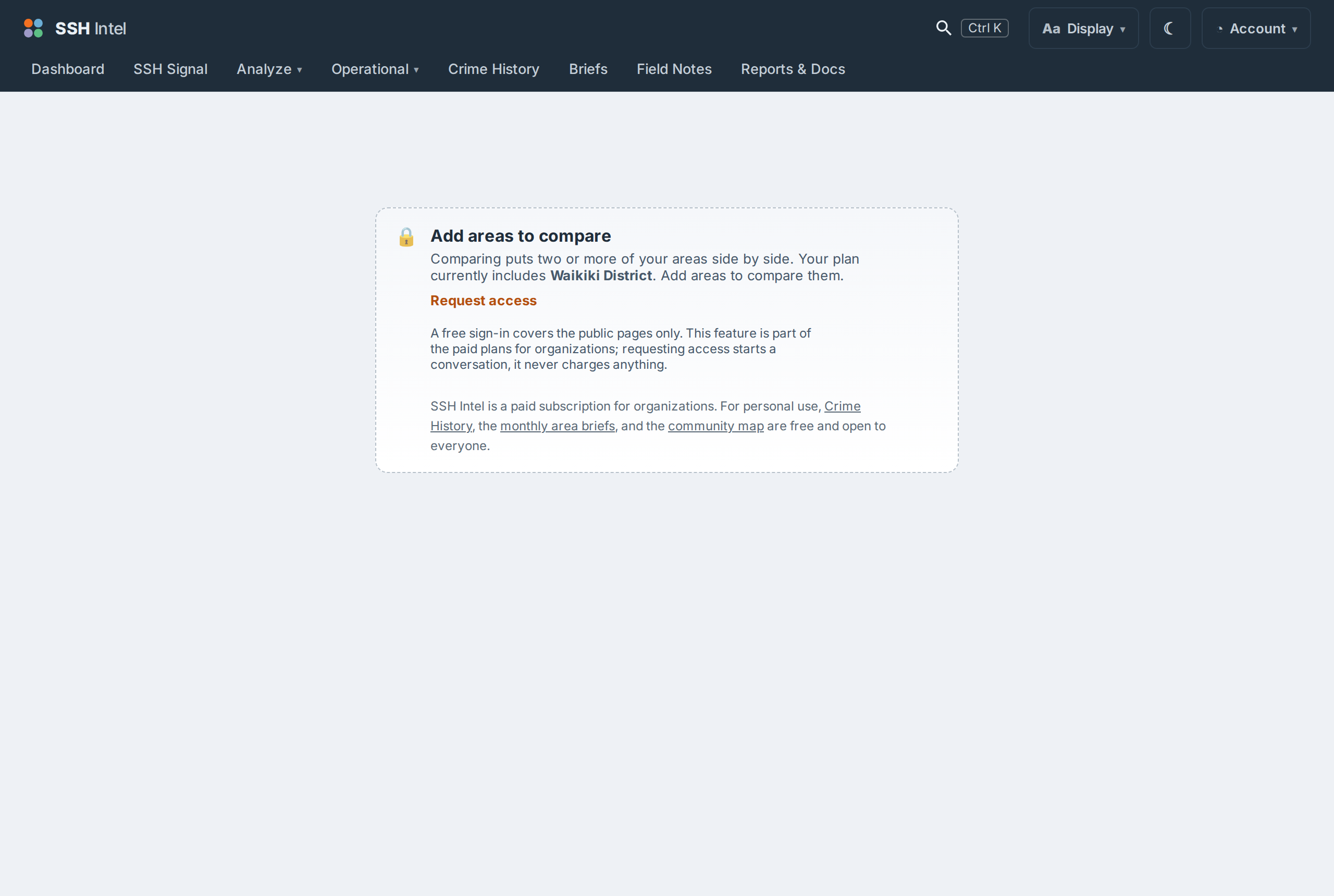
Reason 1: the feature is not on your plan
Tools like Explore, Compare, downloads, and the Portfolio views are tied to specific tiers. If your plan does not include one, its page shows a single locked card instead of the tool. Upgrading on the Plans page unlocks it.
Reason 2: the area is outside your plan
If you try to open a report or run a search for an area your plan does not cover, you will get a "not in your plan" message. Your plan defines your areas; you can always see everything inside them, and nothing outside them.
How to tell which
The locked card names what is needed. If it mentions a feature (for example "Compare is on the Regional plan and up"), it is reason 1. If it mentions an area, it is reason 2. Your current plan and areas are shown under Account.
Last updated 2026-07-15 HST